Grid Co






How it works
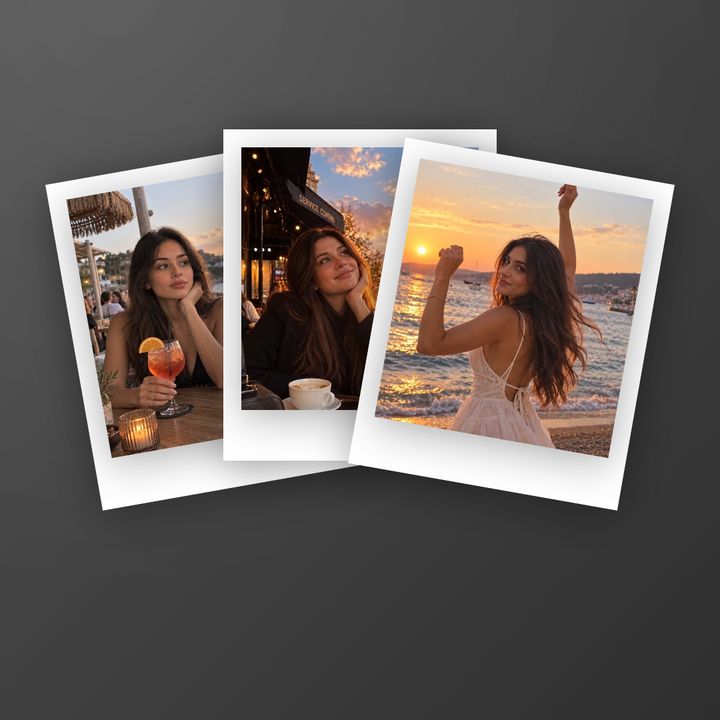
Starting from a template such as Riviera Polaroids instead? Its frames are already designed: add your photos and tap Share.
- Open Grid Co and pick a layout.
- Add your photos from the system photo picker.
- Open the Frame tool and choose Polaroid, Film or Torn.
- Turn Shadow on or off, then adjust Gap, Margin and Corners.
- Tap Share, then Save Image, or send it straight to Instagram.
- Three frame stylesPolaroid, Film and Torn paper, plus None for a clean edge.
- ShadowOne switch lifts the frames off the background.
- Polaroid layouts8 polaroid layouts place 2 to 5 photos in Polaroid cards.
Polaroid, Film or Torn: which frame?
Each frame gives the collage a different feel.
- Polaroid for a snapshot look with a white border
- Film for a film strip look
- Torn for a torn paper edge, like a scrapbook page
- None for photos with no frame


Add a photo frame shape
Add Frame in the Add menu puts an empty shape on the canvas, such as a heart, circle or star, ready to fill with a photo.
- Open the Add menu and tap Add Frame
- Choose a shape, such as a heart, circle or star
- Fill it with a photo
FAQ
Frequently asked questions
How do I make a Polaroid collage on iPhone?
Pick a polaroid layout, where every photo already sits in a Polaroid card, or a template such as Riviera Polaroids. On any other grid layout, choose Polaroid in the Frame tool.
How do I make a film frame collage?
Choose Film in the Frame tool. It frames every photo cell of the layout at once.
Can I use a different frame on each photo?
The Frame tool sets one frame for every photo cell of the layout. A photo added with Add photos is its own layer with its own Frame, and Add Frame places a single shape, such as a heart, circle or star.
Are the frames free?
Yes. The Frame tool and every layout are free; only the small "Grid Co" watermark on exports needs Grid Co Premium to go.
Can I save a framed collage for Instagram?
Yes. Choose Post, Portrait or Story, then Share to Instagram or Save Image.