Grid Co
Updated
Wallpaper Collage Maker
To make a wallpaper collage on iPhone, choose the Story 9:16 format in Grid Co. It saves a tall 1080×1920 image. Pick a layout, add your photos, set the background, and tap Share, then Save Image. Then set it as your wallpaper in iOS. Free, with no account.





How it works
- Open Grid Co and tap Format, then choose Story 9:16.
- Pick a layout, or a template made for Story.
- Add your photos with the system photo picker.
- Set Gap, Margin and Corners, then add a background colour, a sticker or a short line of text.
- Tap Share, then Save Image. Then set the picture as your wallpaper in iOS.
- Tall formatStory 9:16 exports at 1080×1920.
- Your look62 designed backgrounds, 48 font families and 201 stickers.
- Many layouts215 layouts in 16 families, free.
What photos work as a phone wallpaper collage?
A wallpaper collage works best with a few photos and plenty of calm space. In Grid Co the Story 9:16 format saves a tall 1080×1920 image, so you can plan one picture around three to six photos that you enjoy seeing every day.
- Your favourite trip in four photos
- A pet on a soft background
- Friends, with a short date or name
- One big photo with a few small ones below
- A single colour behind a row of photos
- A gradient background with three rounded photos
| Format | Pixels | Note |
|---|---|---|
| Story 9:16 | 1080×1920 | The tall format, for a phone wallpaper |
| Portrait 4:5 | 1080×1350 | A feed post |
| Post 1:1 | 1080×1080 | A square post |
How do you plan a wallpaper collage around icons and the clock?
A wallpaper collage sits behind the iOS clock and the home screen icons, so it needs quiet areas. Plan the space before you place photos: keep the busiest part of the picture away from where the clock and icons will sit, and check the result on your own screen.
- Keep faces away from the top and bottom edges
- Leave quiet space where the clock and icons go
- Use a plain background colour between photos
- Try a gradient or pattern background for depth
- Increase Margin so photos do not crowd the edges
- Check it on your screen before you keep it
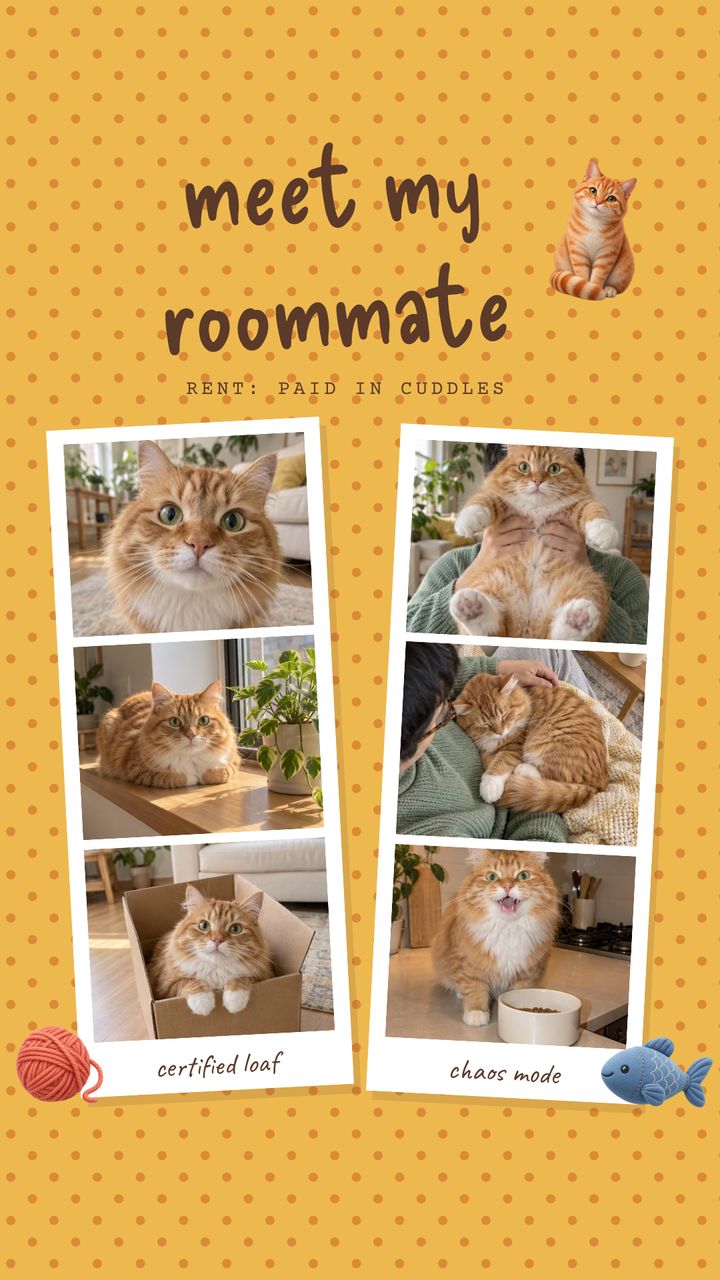
The Background tool has six tabs: Photo (your own photo), Color, Gradient, Pattern, Texture and Wallpaper, a tab of wallpaper patterns. Its 62 designed backgrounds sit in Gradient, Pattern, Texture and Wallpaper. Gap, Margin and Corners change how tightly the photos sit. For a Story 9:16 start, look at the templates Pilates Princess, Meet My Roommate and Coffee Date, then swap in your photos and background.
FAQ
Frequently asked questions
What size should a phone wallpaper collage be?
Story 9:16 in Grid Co saves 1080×1920, a tall image that suits a phone screen.
Can I make a wallpaper collage on iPhone for free?
Yes. All layouts are free. Grid Co Premium only removes the small "Grid Co" watermark and unlocks the Premium templates.
How do I set the collage as my wallpaper?
Save it with Share, then Save Image. Setting the wallpaper is done in iOS, for example with Use as Wallpaper in the Photos app's share menu; Grid Co does not change your wallpaper itself.
Will the clock cover my photos?
On the lock screen iOS shows the clock over the wallpaper, and the home screen has app icons. Keep faces and text away from the very top and bottom.
How many photos can I use?
Up to 20 in one collage, though 3 to 6 usually look best on a wallpaper.
Can I add text?
Yes. Tap Add, then Text, and pick from 48 font families.